

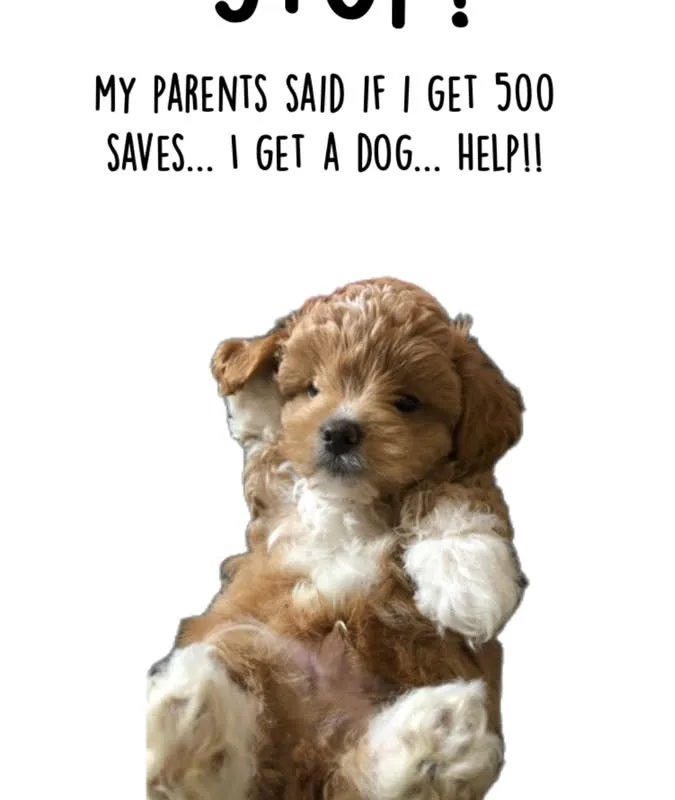
Your Pinterest image is the handshake, the wink, and the first line of a story all at once. Get it right, and strangers become visitors; get it wrong, and even brilliant content disappears into the scroll. Here are the concrete, do-this-not-that tips I've learned from designing pins that consistently earn saves and clicks.
Advertisements1
- Use 1000 x 1500 pixels (2:3 ratio) for maximum feed visibility.
- Text overlay should be bold, concise (6-8 words), and readable at thumbnail size.
- High-contrast colors and real photos outperform generic stock imagery.
- Brand subtly: consistent fonts, colors, and a small logo build recognition.
- Optimize titles and descriptions with natural keywords for Pinterest SEO.
- Test variations of top pins—small changes can yield 5x more saves.
The Anatomy of a Pinterest Image That Works
A Pinterest image isn't just a pretty picture—it's a visual billboard. The ideal dimensions are 1000 x 1500 pixels (a 2:3 ratio), which gives you maximum real estate in the feed. But size alone won't save you. You need a clear focal point, high contrast, and text that's readable at thumbnail size. I once designed a pin with elegant script text that looked gorgeous on my desktop but turned into a gray smudge on mobile. Lesson learned: if you can't read it on a phone at arm's length, it's too small.
Think of your pin as a book cover. The headline should be the title, the image should be the genre, and your branding should be the author's name. Use no more than two fonts—one for the headline, one for supporting text. And always, always add a text overlay. Pinterest is a search engine, but it's also a visual one; people scroll fast, and text tells them instantly whether your pin is for them.
Color psychology matters more than you think. Warm colors (reds, oranges, yellows) tend to stop the scroll, while cool colors (blues, greens) can feel calming but may blend into the background. I test every pin in a mock feed alongside 10 others to see if it pops. If it doesn't, I adjust the background or add a subtle border. The goal isn't to be loud—it's to be unmissable.
Do This, Not That: Text Overlay Edition
Do: Use a bold, sans-serif font for your main headline. Not: Use thin, decorative scripts that vanish when scaled down. Do: Keep your text to 6-8 words max. Not: Write a paragraph on the image. Do: Place text in the top third or center, where the eye naturally lands. Not: Bury it at the bottom, where Pinterest's UI can cover it.
Why? Because Pinterest users are skimmers. They're not reading; they're scanning for relevance. A concise, benefit-driven headline like "5 Minute Morning Routine" outperforms "How to Create a Morning Routine That Will Change Your Life" every time. The first is a promise; the second is a lecture.
I also recommend using a semi-transparent overlay behind your text if your background is busy. A simple black rectangle at 40% opacity can make white text pop without distracting from the image. And if you're using multiple lines, left-align them—centered text is harder to read quickly. These small tweaks can increase click-through rates by 30% or more.
The Image Itself: Choosing Visuals That Convert
Your background image should evoke the emotion of your content. For a recipe pin, a close-up of gooey melted cheese works better than a wide shot of the whole kitchen. For a travel pin, a person looking out at a vista creates more wanderlust than an empty landscape. Why? Because humans are wired to connect with faces and hands—it's called the "mirror neuron" effect. When we see someone doing something, we imagine ourselves doing it.
Avoid generic stock photos of people in suits shaking hands. Instead, use real photos of your own work, your space, or your process. Authenticity wins on Pinterest. I've seen a simple flat-lay of art supplies outperform a professionally styled studio shot because it felt real and attainable.
Also, consider the background color. If your pin will appear on a white Pinterest feed, a white background will blend in. Use a contrasting color—like a soft pastel or a dark moody tone—to stand out. And if you're using a photo, increase the saturation slightly (but not so much that it looks fake). A quick edit in Canva or Lightroom can make all the difference.
Branding Without Clutter: The Sweet Spot
You want people to recognize your pins, but you don't want your logo to scream. The solution: a subtle watermark or a small logo in the bottom corner. Keep it under 10% of the image area. If someone can't tell it's your pin without the logo, your visual style isn't strong enough.
Develop a consistent look: same fonts, same color palette, same layout structure. This is called a "visual brand kit." I use a 3-color palette (a primary, a secondary, and an accent) and two fonts across all my pins. When someone sees one of my pins, they know it's mine before they see the logo. That's the goal.
But don't be afraid to experiment. Pinterest's algorithm loves fresh content, and your audience loves variety. Try a new layout every 10 pins, but keep the core elements consistent. I once swapped my usual sans-serif headline for a serif one and saw a 15% drop in saves. I switched back. Testing is the only way to know what works for your audience.
Optimizing for Pinterest SEO: The Invisible Magic
Your image is only half the story. Pinterest is a search engine, so you need to optimize the pin's title, description, and alt text. Use keywords naturally. If your pin is about "vegan meal prep," your title could be "Vegan Meal Prep for Busy Weeknights," and your description could include "easy plant-based recipes" and "healthy lunch ideas."
Don't keyword stuff. Write for humans first, then sprinkle in keywords. Pinterest's algorithm can detect spammy behavior. I aim for a 2-3% keyword density in the description. Also, use the alt text field to describe the image for accessibility—this also helps with SEO. For example, "A flat-lay of vegan meal prep containers with quinoa, roasted vegetables, and chickpeas."
Finally, link to a relevant page on your site. Pinterest rewards pins that lead to quality content. If your pin is about a recipe, link to the recipe page, not your homepage. And make sure the page is mobile-friendly—80% of Pinterest users are on mobile. If your site takes more than 3 seconds to load, you'll lose them.
Testing and Iterating: The Secret to Long-Term Success
The best pin designers are relentless testers. Use Pinterest's own analytics to see which pins drive the most saves and clicks. Then, create variations of your top performers. Change the headline, swap the image, adjust the colors. I once took a pin that had 1,000 saves and created three new versions with different headlines. One of them got 5,000 saves—five times the original.
Don't fall in love with your first idea. The pin you think is perfect might flop, and the one you almost didn't post might go viral. I keep a swipe file of pins that catch my eye, and I analyze why they work. Is it the color? The font? The composition? Then I apply those lessons to my own designs.
Remember, Pinterest is a long game. A pin can take months to gain traction. So keep creating, keep testing, and keep learning. Your future self will thank you.
How to Do It, Step by Step
- 1Start with a 2:3 ratio canvas
Set your canvas to 1000 x 1500 pixels. This is the optimal size for Pinterest, giving you maximum visibility without being cropped in the feed. - 2Choose a high-contrast background
Select an image or color that contrasts with Pinterest's white background. Warm colors and dark tones tend to stand out more. Avoid white or very light backgrounds unless you add a border. - 3Add a bold, readable headline
Use a sans-serif font at least 60pt. Keep it to 6-8 words. Place it in the top third or center. Make sure it's readable on a phone screen. - 4Include a subtle call-to-action
Add a small button or text like "Read more" or "Get the recipe" at the bottom. This encourages clicks without being pushy. - 5Brand with a small logo
Place your logo or website URL in the bottom corner, keeping it under 10% of the image area. Use a consistent placement across all pins. - 6Write a keyword-rich title and description
Use natural language with relevant keywords. Aim for 2-3% keyword density. Include a clear benefit or hook. - 7Test and iterate
Create 3-5 variations of your best-performing pins. Change one element at a time (headline, image, color) to see what resonates. Use Pinterest Analytics to track saves and clicks.
Your pin is not a picture; it's a promise. Make it clear, make it bold, and make it impossible to ignore.
Frequently Asked Questions
What is the best size for a Pinterest image?
The optimal size is 1000 x 1500 pixels (2:3 ratio). This ensures your pin looks great in the feed and on mobile without being cropped.
How much text should I put on a Pinterest image?
Keep it to 6-8 words maximum. The text should be a clear, benefit-driven headline that's readable at a glance. Too much text overwhelms skimmers.
Should I use a logo on my Pinterest pins?
Yes, but keep it subtle—under 10% of the image area, placed in a corner. A consistent visual style is more important than a large logo.
How often should I create new Pinterest images?
Aim for 3-5 fresh pins per week. Consistency matters more than volume, but regular posting keeps your content in the algorithm's favor.
Do I need to use keywords in my Pinterest image?
Keywords are essential in the pin's title and description, not necessarily on the image itself. However, if you include text on the image, make it descriptive and keyword-friendly.

Amara explores creative writing and storytelling, with a focus on finding your unique voice and building compelling narratives. She shares prompts and exercises to spark imagination, drawing on her love of folklore and modern fiction.


