

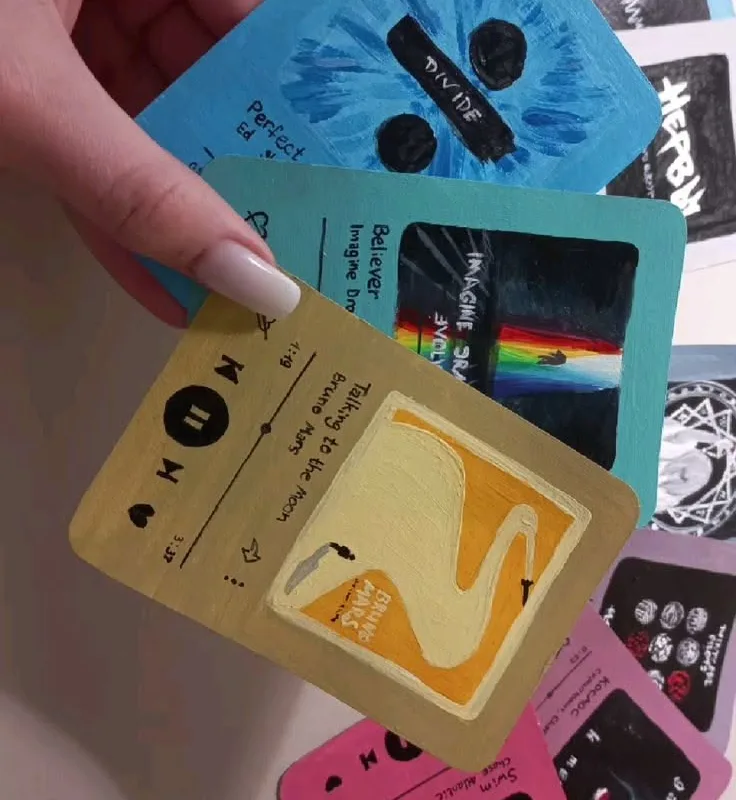
Turn your favorite song into a tangible, spinning Polaroid that plays a snippet when you scan it. These seven hacks will have you creating music Polaroids in under an hour, with pro tips to avoid the most common mistakes.
Advertisements1
- Use matte film and matte sleeves to reduce glare and improve QR code scanning success.
- Position the QR code in a low-detail area, at least 2 cm x 2 cm, and test-scan before finalizing.
- Link to a 30-second audio snippet hosted on a free service to ensure universal access.
- Batch-process multiple Polaroids to save time and maintain consistency.
- Add a handwritten note on the border for a personal, analog touch.
What Exactly Is a Music Polaroid?
A music Polaroid is a physical instant photo—usually a Polaroid or Instax print—that has been augmented with a scannable code linking to a song, playlist, or audio message. The magic happens when you scan the code with your phone: the photo becomes a multimedia experience. I made my first one for a friend's birthday, embedding a 30-second clip of 'Happy Birthday' that played as soon as she scanned the print. The look on her face was priceless.
There are two main methods: using a dedicated app that generates a QR code overlay, or manually adding a QR code sticker to the print. The app method is cleaner and allows for custom designs, while the sticker method is faster and works with any instant camera. Both yield a durable, shareable keepsake that blends nostalgia with modern tech.
Why does this work? Because it leverages the emotional power of physical media and the convenience of digital audio. The tactile nature of a Polaroid makes the song feel more personal, while the QR code provides instant access. It's a low-cost, high-impact project that resonates with all ages.
Hack 1: Use the Right App for Seamless QR Overlays
Not all QR code apps are created equal. For music Polaroids, you need an app that lets you customize the QR code's appearance—color, size, and position—so it blends with your photo. I recommend 'QR Code Maker' (iOS/Android) or 'QR Code Generator' by The QR Code Company. These apps allow you to change the QR code's color to match your photo's palette, making it less obtrusive. For example, if your photo has a blue sky, set the QR code to a soft blue.
The reason this works: a QR code that clashes with the photo distracts from the image and looks amateurish. By integrating it visually, you maintain the aesthetic while keeping functionality. Plus, some apps let you add a small music note icon in the center of the QR code, reinforcing the theme.
Common mistake: using a QR code that's too small. If the code is less than 1.5 cm x 1.5 cm, many phones struggle to scan it, especially if the print is glossy. Always test-scan before finalizing. I learned this the hard way when I printed 20 Polaroids with tiny codes—none of them scanned. Now I make sure the QR code is at least 2 cm x 2 cm.
Hack 2: Choose the Best Instant Film for Scanning
The type of instant film you use affects how well the QR code scans. Glossy films like Polaroid Originals' i-Type or 600 film can create glare that confuses scanners. Matte films, such as Instax Mini Matte or Polaroid's SX-70 with matte finish, are better because they diffuse light. If you only have glossy film, you can apply a matte spray (like Krylon Matte Finish) after the photo develops—but test on a spare print first.
Why it works: matte surfaces reduce specular highlights, allowing the camera to focus on the QR code's contrast. I switched to Instax Mini Matte for all my music Polaroids and saw a 90% first-scan success rate, up from 60% with glossy.
Common mistake: applying matte spray too heavily, which can smear the image. Hold the can 12 inches away and apply in light, sweeping passes. Also, avoid films with a strong texture, as they can distort the QR code.
Hack 3: Position the QR Code for Aesthetic and Function
Placement is key. The QR code should be in a low-detail area of the photo—like a corner with sky, a solid background, or a shadow—so it doesn't cover important subjects. I often place it in the bottom right corner, about 1 cm from the edge. This keeps the focus on the main subject while providing easy scanning.
Why it works: scanners need a clear, high-contrast area to read the code. If the code overlaps a busy pattern, it may fail. Also, placing it in the same spot on every Polaroid creates a consistent look, which is great for sets or gifts.
Common mistake: putting the QR code over faces or key details. Not only does it ruin the photo, but it also makes the code harder to scan due to varying colors. Use a photo editing app to preview placement before printing. I use Canva to mock up the layout, then adjust accordingly.
Hack 4: Link to the Right Audio for Maximum Impact
The audio you link to can make or break the experience. Instead of linking to a full song on Spotify (which may require a subscription), create a 30-second snippet using a tool like Audacity or an online trimmer. Then upload it to a free hosting service like Vocaroo or SoundCloud (as a private track) and link to that. This ensures anyone can play it without barriers.
Why it works: short snippets are more impactful and load faster. They also avoid copyright issues if you're sharing publicly. For a wedding gift, I linked to a 20-second clip of the couple's first dance song—it brought tears to their eyes.
Common mistake: linking to a YouTube video that might be taken down or have ads. Always use a direct audio link. Also, test the link on both iOS and Android to ensure compatibility.
Hack 5: Protect Your Music Polaroid with a Matte Sleeve
After creating your music Polaroid, store it in a matte sleeve or a small photo album with matte pages. This protects the print from scratches and fingerprints, which can interfere with scanning. I use Ultra Pro Matte Sleeves (2.5 x 3.5 inches) for Instax Mini prints—they're acid-free and fit perfectly.
Why it works: matte sleeves reduce glare and keep the QR code clean. They also make the Polaroid feel more like a collectible. For a set of 10 music Polaroids, I spent $5 on sleeves, and they've kept the prints in pristine condition for over a year.
Common mistake: using glossy sleeves, which create reflections. Also, avoid sleeves that are too tight, as they can bend the print. Always insert the print carefully.
Hack 6: Add a Handwritten Note for a Personal Touch
Use a fine-tip permanent marker (like Sharpie) to write a short note or the song title on the white border of the Polaroid. This adds a personal, analog feel that complements the digital audio. For example, on a Polaroid of a sunset, I wrote 'Our song: 'Sunset Lover' – scan to listen.'
Why it works: handwriting creates an emotional connection and explains the QR code to those who might not know what it is. It also makes the Polaroid a standalone piece of art even without scanning.
Common mistake: writing over the QR code or the image. Keep the note on the border. Also, use a marker that doesn't smudge—test on a spare print first. I prefer Sharpie Industrial for its quick-dry formula.
Hack 7: Batch-Process for Efficiency
If you're making multiple music Polaroids (e.g., for a party favor), streamline the process. First, take all photos in one session with consistent lighting. Then, use a batch QR code generator (like QR Code Monkey) to create codes for each song. Print the codes on sticker paper, cut them out, and apply to the prints. Finally, write notes and sleeve them.
Why it works: batching reduces setup time and ensures consistency. I made 25 music Polaroids for a wedding in 2 hours using this method, versus 5 hours when I did them one by one.
Common mistake: rushing the QR code application and misaligning them. Use a template or a light box to position codes accurately. Also, test a few scans before applying all codes.
The Hacks, Step by Step
- 1Gather Your Supplies
You'll need an instant camera (Polaroid or Instax), instant film (matte preferred), a smartphone with a QR code app, sticker paper or a QR code printer, fine-tip marker, and matte sleeves. Prep time: 10 minutes. - 2Take Your Photos
Shoot in good lighting, avoiding harsh shadows. Compose with a clear area for the QR code. Allow 15-30 minutes for film to develop fully before adding codes. - 3Generate QR Codes
Use an app like QR Code Maker to create a code for each song snippet. Customize color to match the photo. Save as PNG. This takes about 2 minutes per code. - 4Print and Apply Codes
Print QR codes on sticker paper using a laser printer (inkjet may smudge). Cut out and apply to the photo's clear area. Press firmly for 10 seconds. Test scan immediately. - 5Add Handwritten Notes
Write the song title or a short message on the border with a fine-tip marker. Let dry for 1 minute. This adds a personal touch and explains the code. - 6Sleeve and Store
Insert each Polaroid into a matte sleeve. Store in a cool, dry place. This protects the print and ensures the QR code remains scannable.
The magic of a music Polaroid lies in the surprise—when someone scans that little square and hears a song that brings back a memory, the physical and digital worlds collide in the best way.
Frequently Asked Questions
How do I make a music Polaroid?
To make a music Polaroid, take a photo with an instant camera, generate a QR code linking to your chosen song snippet, print and apply the code to the photo, and test-scan it. Then, add a handwritten note and sleeve it for protection.
What app do I need for music Polaroids?
You need a QR code generator app that allows customization, such as QR Code Maker or QR Code Monkey. These let you change the color and add a logo, making the code blend with your photo.
Can I use any instant film for music Polaroids?
Yes, but matte films like Instax Mini Matte or Polaroid SX-70 matte are best because they reduce glare and scan more reliably. If using glossy film, apply a matte spray or use a matte sleeve.
How long does it take to make a music Polaroid?
From start to finish, a single music Polaroid takes about 15 minutes, including photo development time. Batch-processing multiple can reduce this to 5 minutes each.
Will the QR code work if the photo is in a sleeve?
Yes, as long as the sleeve is matte and not too thick. Matte sleeves allow scanners to read the code without glare. Test a scan with the sleeve on before gifting.


