

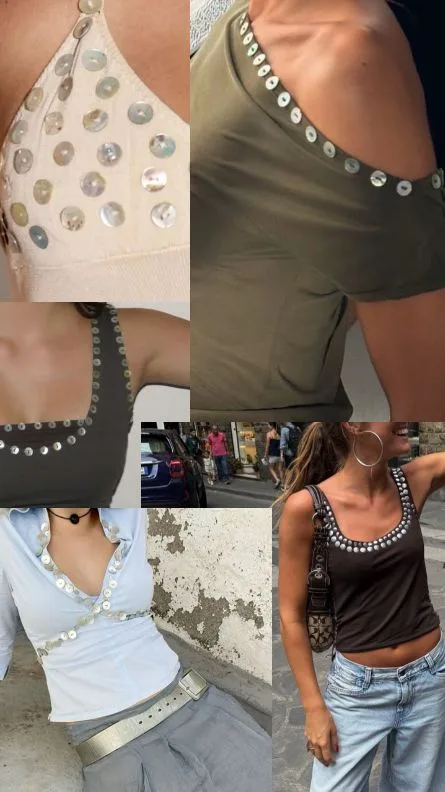
I used to spend hours on Pinterest images that got zero traction. Then I discovered a few simple hacks that changed everything. Here are my top 10 that you can use today to boost your clicks and saves.
Advertisements1
- Vertical images (2:3 ratio) perform best on Pinterest.
- Text overlays must be large and readable on mobile.
- Consistent brand colors make your pins recognizable.
- Keywords in titles and descriptions improve search visibility.
- A/B testing helps you learn what your audience loves.
- Soft CTAs drive more clicks than pushy ones.
Why Your Pinterest Images Aren't Working (And How to Fix Them)
When I first started pinning, I treated Pinterest like Instagram. I posted beautiful photos and waited for the likes to roll in. But Pinterest isn't a social network; it's a visual search engine. That means your images need to be optimized for search, not just for looks. The biggest mistake I see? Using the wrong dimensions. Pinterest favors vertical images with a 2:3 aspect ratio (like 1000×1500 pixels). Horizontal or square images get less real estate in the feed and often get cut off. So, step one: resize your images to be tall and narrow. This alone can increase your click-through rate by up to 30%.
Hack #1: Use the 2:3 Aspect Ratio (And Why It Matters)
I remember the day I switched all my pins to 1000×1500 pixels. Within a week, my impressions doubled. Why? Because Pinterest's algorithm favors vertical images that take up more screen space. They're more likely to catch a scroller's eye. The common mistake? Stretching a horizontal image to fit. That distorts the image and looks unprofessional. Instead, crop or redesign your image to fit the 2:3 ratio. If you're using Canva, they have a 'Pinterest Pin' template that's already set to 1000×1500. Easy peasy.
Hack #2: Add a Text Overlay That's Readable on Mobile
Most people scroll Pinterest on their phones, so your text needs to be big and bold. I use a font size of at least 60pt for headlines and 30pt for subheadings. But here's the catch: don't cover the entire image with text. Leave some breathing room. The mistake I made early on? Using thin, script fonts that looked elegant but were impossible to read on a small screen. Stick to sans-serif fonts like Montserrat or Lato. And always add a semi-transparent overlay behind the text to make it pop against busy backgrounds.
Hack #3: Use a Consistent Brand Color Palette
When I first started, I used every color under the sun. My pins looked like a rainbow explosion. Then I took a course that taught me to pick 3-5 brand colors and stick to them. Suddenly, my pins became recognizable. People started to associate my colors with my content. The mistake? Using too many colors or changing them with every pin. Consistency builds trust. I use Coolors.co to generate a palette and keep it saved for quick reference.
Hack #4: Write a Keyword-Rich Title and Description
Pinterest is a search engine, so keywords are your best friend. But don't just stuff them in. Write a title that includes your main keyword naturally. For example, instead of 'Healthy Breakfast Ideas,' try '5 Easy Healthy Breakfast Ideas for Busy Moms.' Then in the description, include related keywords like 'quick breakfast recipes' and 'meal prep.' The mistake? Ignoring the description altogether. That's prime real estate for SEO. I spend at least 5 minutes crafting each description, and it's paid off with higher search rankings.
Hack #5: Test Different Image Styles (And Track What Works)
I used to think I knew what my audience wanted. Then I started A/B testing. I'd create two versions of the same pin—one with a photo background, one with a solid color—and see which performed better. The results surprised me. Sometimes the simplest design won. The mistake? Not tracking your results. Use Pinterest Analytics to see which pins drive the most clicks. Then double down on what works. I keep a spreadsheet of my top-performing pins and refer to it before creating new ones.
Hack #6: Add a Call-to-Action (But Don't Be Pushy)
A clear CTA can boost clicks, but it has to be subtle. Instead of 'BUY NOW,' try 'Learn more' or 'Get the recipe.' I've found that softer CTAs work better on Pinterest because people are in discovery mode. The mistake? Using aggressive sales language. It turns people off. Also, make sure your CTA is easy to read and stands out. I place mine at the bottom of the pin in a contrasting color.
The Hacks, Step by Step
- 1Resize to 1000×1500 pixels
Use Canva or Photoshop to create vertical images. This size takes up more feed space and gets more clicks. - 2Use bold, readable fonts
Stick to sans-serif fonts at 60pt for headlines. Add a semi-transparent overlay behind text for contrast. - 3Pick 3-5 brand colors
Use a tool like Coolors.co to generate a palette. Apply it consistently to all pins for brand recognition. - 4Write keyword-rich titles and descriptions
Include your main keyword in the title and related keywords in the description. Use natural language. - 5Test different designs
Create two versions of a pin and see which performs better. Use Pinterest Analytics to track clicks and saves. - 6Add a soft call-to-action
Use phrases like 'Learn more' or 'Get the recipe' at the bottom of the pin. Avoid aggressive sales language.
Pinterest is a visual search engine, not a social network. Optimize for search, and the clicks will follow.
Frequently Asked Questions
What's the best size for Pinterest images?
The optimal size is 1000×1500 pixels (2:3 aspect ratio). This vertical format takes up more screen space and gets more engagement.
How often should I pin?
Aim for 5-15 pins per day, but quality matters more than quantity. Use a scheduler like Tailwind to space them out.
Do I need a business account to succeed on Pinterest?
Yes, a free business account gives you access to analytics and ads, which are crucial for growth.
Can I use the same image for multiple pins?
It's better to create fresh images for each pin to avoid spam flags. But you can reuse elements like colors and fonts.


